 pixel
Trim a video, resize it and make a useful GIF
Checked 21 October 2026 · Original sample and real browser exports
A good short-video export starts with a specific job: keep the useful part, give it the right shape, and choose whether it needs sound. This walkthrough uses an original PixelDesk coastal illustration with six seconds of gentle camera movement and a quiet reference tone. Download the same source and repeat the settings in Video Studio.
Download the original six-second MP4 · 640 × 360
1. Choose the useful range first
Open the sample, go to Trim, and set Start to 1 second and End to 3 seconds. At normal speed, this selects two seconds. Choose 2× playback speed to make the result one second long. Play the preview to check both the beginning and the ending. Speed changes audio pitch in this version; the faster soundtrack sounds higher.
2. Make a square without stretching the scene
In Size, enter a width and height of 240 pixels, then choose Fill. The landscape scene covers the square and its left and right edges are cropped. Fit would keep the complete scene and add padding. Check the subject near both edges in the moving preview; choosing a square size alone does not guarantee that the important part remains visible.
Choose WebM, 12 fps and 0.6 Mb/s in Export. The reference result below was created with those settings on Chromium for Windows. It is 240 × 240, includes an Opus soundtrack, and is 115,059 bytes. The container reports 1.02 seconds: short audio-codec padding can extend the one-second selection slightly. Results from another browser encoder may have different bytes.
Download the actual trim / speed / resize result
3. Create a short GIF deliberately
Reset adjustments, choose the range 0–2 seconds, and leave speed at 1×. In GIF, choose 240 pixels wide, 12 fps and 64 colors. Create an animated GIF in Export. The tested result contains 24 frames, measures 240 × 135 and occupies 472,998 bytes. Its frame delays alternate between 80 and 90 milliseconds to represent 12 fps in GIF’s centisecond time units; the full cycle remains two seconds.
Download the actual two-second GIF · Read about GIF settings

A GIF can be larger than a video despite having fewer colors and no sound. Movement, width, frame count and palette all affect its size. Shorten the loop and reduce dimensions before adding more frames. If you need a video again, GIF to video exports one cycle while retaining its frame timing.
4. Check still images and sheets
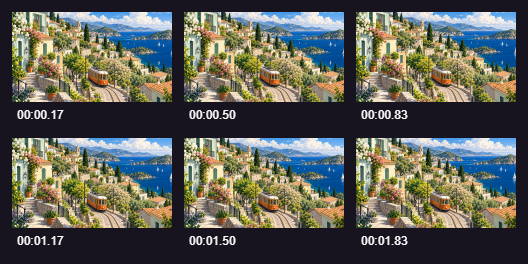
For a planning sheet, select 0–2 seconds and open Frames. Choose six frames, three columns and 160-pixel cells, with timestamp labels enabled. The frames are sampled at the midpoint of six evenly spaced segments. The final PNG is 528 × 264 including the outer margin, gaps and labels.
Download the sheet PNG · Capture one frame instead
5. Inspect the saved file, not just the estimate
Open the exported file and check the first and last moment, picture dimensions, important edges, soundtrack and playback compatibility. Bitrate and optional size targets are best effort. In the same two-second sample test, a 150 KiB target produced 182,424 bytes, so it did not meet that limit. PixelDesk reports the actual bytes and flags a missed target; use a lower bitrate, smaller frame or shorter selection and try again.
MP4 requires an available H.264 encoder. MP4 with sound also requires AAC encoding; WebM with Opus is an alternative where supported. Muting is explicit. A browser that cannot keep the soundtrack must not silently remove it.
What was checked
On 21 October 2026, the original sample workflow was checked in Chromium on Windows. Fifteen browser checks covered video with sound, trimming, speed, resizing, crop and rotation, silent MP4, WAV and Ogg audio, color and watermark, GIF timing, still capture, sheets, size targets, GIF conversion, cancellation and invalid input. Eleven saved media exports were also decoded with an independent media utility. This is evidence for this sample and environment, not a guarantee for every source codec or device.
Download the sample’s measured export report
Privacy and practical limits
The optional sample downloads from PixelDesk; selected personal clips remain in local browser memory. The current studio accepts up to 12 sources and 24 timeline clips, within two minutes and 128 MiB combined. A video source stays within 100 MiB and 16 megapixels per frame. Output is limited to 1,920 pixels per side, 1080p pixel area and 3,600 video frames. GIF exports are limited to 240 frames and 720 pixels wide. Try smaller settings on a phone. Keep originals and inspect your downloaded results before sharing them.
Continue with the next part of the job
Use Split video to remove an interruption, or Merge videos to order several short clips. Subtitles accepts manual cues and SRT/WebVTT imports; it does not transcribe speech. Exported subtitle files remain separate text tracks, while burned captions become picture pixels. The W3C WebVTT specification describes the timed-text format.
For a delivery budget, use the video bitrate calculator and read why an estimate can differ from saved bytes. If your clip has an unfamiliar codec, MDN’s container guide explains why an extension alone does not establish playback support.
Prepared by Operance Labs · Report a documentation issue