 pixel
Replace an image color and keep shading
Replace matching RGB colors with a chosen target. Tune tolerance, feathering and strength, optionally retaining luminance-based shading while leaving transparency intact.
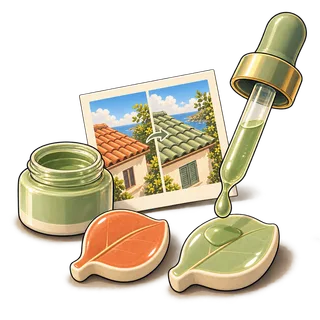
Replace a color
03 / Your result is ready.
Export createdHow to replace an image color and keep shading
- Open an image and click a visible source pixel in Original, or enter its HEX color.
- Choose the target color, start with a low tolerance and adjust feathering and shading in Live preview.
- Export a separate copy and inspect other objects that share the source color.
Know before you export
Selection uses RGB similarity across the whole image, not object recognition. Matching foreground and background pixels can both change. Retaining shading scales target RGB by relative luminance and can clip bright values; compare the edges and highlights. Effects use up to 12 megapixels.
Supported files
Still JPEG, PNG, WebP and AVIF up to 20 MiB and 64 megapixels, plus HEIC where your browser can open it (Safari on Mac, iPhone and iPad). Photos above 24 megapixels are edited at 24 megapixels, and color effects run at up to 12 megapixels. Multi-image tools allow 12 files and 60 MiB of combined input. GIF, SVG, animated images and RAW formats are not supported.
Quick ways in
Drop an image anywhere on this page or paste one from your clipboard.
Keyboard shortcuts
- Ctrl/⌘ O Choose an image
- Ctrl/⌘ Enter Process
- Ctrl/⌘ S Download the result
- Ctrl/⌘ Z Undo settings · add Shift to redo
- Esc Cancel processing
Your files stay local
Selected image bytes are processed in browser memory. No account, upload endpoint or remote processing service is used.
Keep creating.
Explore all 39 tools
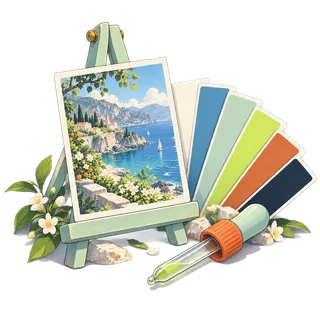
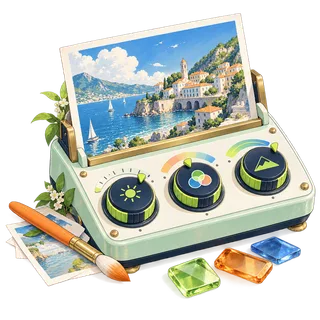
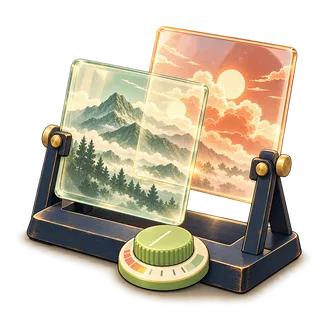
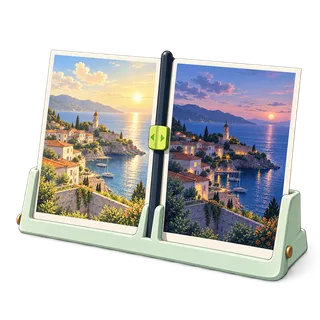
A practical Replace a color workflow.
Explore a new color for a simple product graphic or illustration.
Try this example
Pick the orange tram body in Original, choose a sage target and start at tolerance 20. Raise it slowly and compare shading on and off.
Check before downloading
Inspect roofs, anti-aliased edges and highlights. Similar RGB values elsewhere change too; this is a global color selection.
If the result is unexpected
Lower tolerance when other objects change. Feathering blends the boundary. Turn shading off for a flatter replacement and inspect the actual download.
Replace a color is free to use in your browser. No account or image upload is required.
Replace a color: common questions
Can I recolor only one object automatically?
The selection is based on RGB similarity, not object recognition or a painted mask. All matching pixels may change, including another object or the background. Lower tolerance and inspect the whole image before saving.
What does Preserve relative shading do?
It scales the replacement RGB values using each matched pixel’s luminance relative to the selected source color. This retains some brightness variation but can clip highlights; switch it off for a flatter, more exact replacement.