 pixel
Change image opacity
Adjust the whole image from fully visible to transparent. Existing alpha is multiplied by your setting, with a checkerboard live preview and PNG or WebP export.

Image opacity
03 / Your result is ready.
Export createdMake a transparent product overlay 50% opaque
Use a controlled transparent illustration to separate whole-image opacity from background removal.

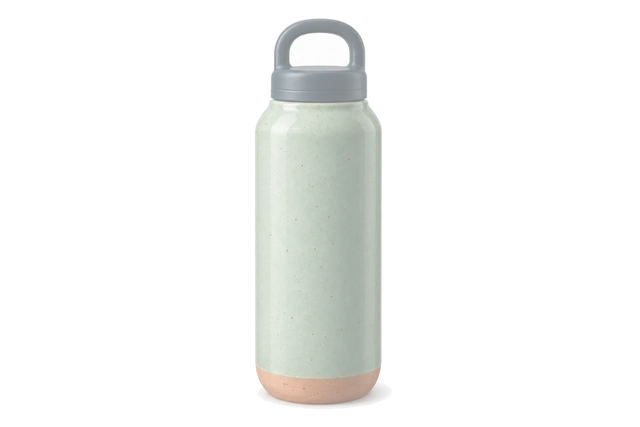
Reproduce the settings
- Image opacity
- 50%
- Export format
- PNG
- Preserve transparency
- On
What changed
Dimensions remain 1,200 × 800. A fully opaque foreground pixel becomes alpha 128 out of 255, while a clear background pixel remains alpha 0. Partially transparent edges are multiplied too.
What to inspect
Compare the checkerboard through the bottle itself. The subject is now translucent. If you only want the white outside removed, use Remove a color instead.
Follow the complete workflow ↗Tested 20 October 2026 in a Chromium browser. Sizes come from the saved exports. Previews are scaled; open the original files above for a full-size comparison. Other browser encoders can produce different results.
How to change image opacity
- Open a still image and select PNG or WebP to keep transparency.
- Set image opacity while watching the checkerboard preview. Keep transparency enabled for an overlay.
- Process and inspect the exported result. JPEG instead composites your image onto the chosen solid background.
Know before you export
Opacity changes every pixel, including the subject. A 50%-opaque source pixel at a 50% setting becomes 25% opaque. A 0% export is fully transparent. JPEG cannot store alpha; it flattens the result onto a background. This is not selective background removal.
Supported files
Still JPEG, PNG, WebP and AVIF up to 20 MiB and 64 megapixels, plus HEIC where your browser can open it (Safari on Mac, iPhone and iPad). Photos above 24 megapixels are edited at 24 megapixels, and color effects run at up to 12 megapixels. Multi-image tools allow 12 files and 60 MiB of combined input. GIF, SVG, animated images and RAW formats are not supported.
Quick ways in
Drop an image anywhere on this page or paste one from your clipboard.
Keyboard shortcuts
- Ctrl/⌘ O Choose an image
- Ctrl/⌘ Enter Process
- Ctrl/⌘ S Download the result
- Ctrl/⌘ Z Undo settings · add Shift to redo
- Esc Cancel processing
Your files stay local
Selected image bytes are processed in browser memory. No account, upload endpoint or remote processing service is used.
Keep creating.
Explore all 39 tools



A practical Image opacity workflow.
Prepare a semi-transparent image for a slide, design overlay or layered composition.
Try this example
Open a transparent logo and set opacity to 50%. Compare it with 100% on the checkerboard. Export PNG with Preserve transparency enabled.
Check before downloading
Check the downloaded file on a contrasting background. Already transparent pixels remain clear; partially transparent pixels become proportionally less opaque.
If the result is unexpected
If the export has a solid background, check that PNG or WebP and Preserve transparency are selected. A fully transparent result at 0% is expected. To remove only a uniform background, use Remove a color.
Image opacity is free to use in your browser. No account or image upload is required.
Image opacity: common questions
Can I save a semi-transparent JPEG?
JPEG cannot store transparency. Use PNG or WebP with Preserve transparency enabled. JPEG composites the faded image onto your chosen background color.
Does opacity remove a white background?
No. It changes every pixel’s alpha. For selective removal of a uniform background, use Remove a color. Existing alpha is multiplied: 50% of a 50%-opaque pixel is 25% opacity.