 pixel
Convert image formats
Convert still images between JPEG, PNG and WebP directly in your browser. Keep the pixel dimensions and choose how to handle transparency.
Convert
03 / Your result is ready.
Export createdConvert a prepared PNG to WebP
Keep the dimensions fixed to compare a change in encoding. This example uses the square output from the product-image workflow.
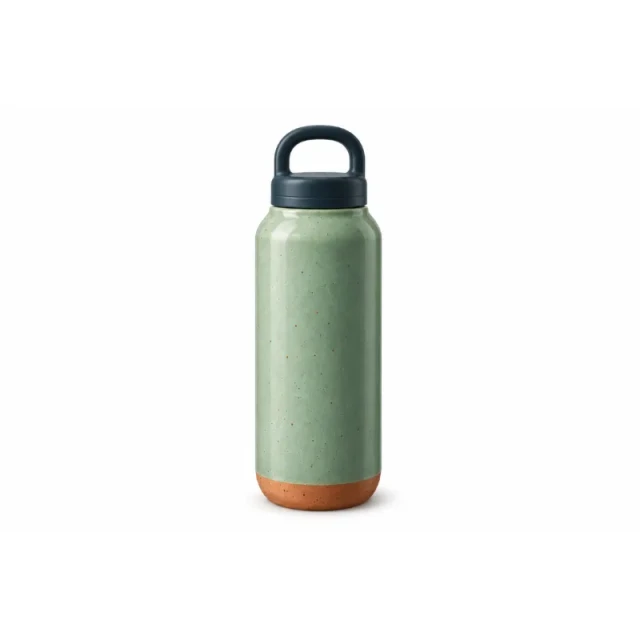
Reproduce the settings
- Export format
- WebP
- JPEG / WebP quality
- 80
- Transparency
- Enabled; this sample is fully opaque
What changed
Both files are 800 × 800 pixels. The WebP is smaller in this particular test; that saving is specific to this textured illustration and encoder.
What to inspect
Open both full-size files and inspect the speckled glaze, cap texture and curved bottle edge. WebP here is lossy. Keep the PNG master and verify that your store or destination accepts WebP.
Follow the complete workflow ↗Tested 20 October 2026 in a Chromium browser. Sizes come from the saved exports. Previews are scaled; open the original files above for a full-size comparison. Other browser encoders can produce different results.
How to convert an image
- Choose a still JPEG, PNG or WebP file.
- Select the output format. For JPEG, choose a background color for transparent areas.
- Process the image, check its format and dimensions, and download the new file.
Know before you export
JPEG cannot preserve transparency. PNG exports are lossless with respect to the decoded canvas pixels; they cannot restore detail already lost in the source. JPEG and WebP default to 90% quality; use the quality control to change it. Browser decoding and color handling can differ from desktop editing software.
Supported files
Still JPEG, PNG, WebP and AVIF up to 20 MiB and 64 megapixels, plus HEIC where your browser can open it (Safari on Mac, iPhone and iPad). Photos above 24 megapixels or 8,192 pixels per side are processed at that size. GIF, SVG and animated images are not supported. Available export formats depend on your browser.
Quick ways in
Drop an image anywhere on this page or paste one from your clipboard.
Keyboard shortcuts
- Ctrl/⌘ O Choose an image
- Ctrl/⌘ Enter Process
- Ctrl/⌘ S Download the result
- Ctrl/⌘ Z Undo settings · add Shift to redo
- Esc Cancel processing
Your images stay local
The tools read your files in browser memory and create a local download. They do not send image contents to a server.
Keep creating.





A practical Convert workflow.
Change a file format to one accepted by a publishing system or another editor.
Try this example
For a transparent logo, choose PNG or WebP and keep transparency enabled. For a photo needed as JPEG, select a matte color and quality before processing. Conversion retains the working image dimensions.
Check before downloading
Inspect transparent edges against the intended background. A PNG export encodes the decoded pixels losslessly but cannot repair artifacts in a source JPEG.
If the result is unexpected
If a PNG photo grows significantly, it may be a poor delivery format. Compare JPEG or WebP. A quality slider does not control PNG size, and unsupported browser encoders cannot be enabled by changing a filename.
Convert is free to use in your browser. No account or image upload is required.
Convert: common questions
How do I convert WebP to PNG?
Open a still WebP file, select PNG and process it. The exported copy keeps the decoded pixel dimensions and can preserve transparency. PNG encoding is lossless and ignores the quality slider.
What happens when I convert a transparent PNG to JPEG?
JPEG has no transparency. PixelDesk fills transparent areas with the background color you choose. Review fine edges in the preview before exporting.