 pixel
Compare JPEG, PNG and WebP exports
Encode one image three ways at consistent pixel dimensions. Compare real file sizes, transparency and visual detail, then download individual results or all three in a ZIP.
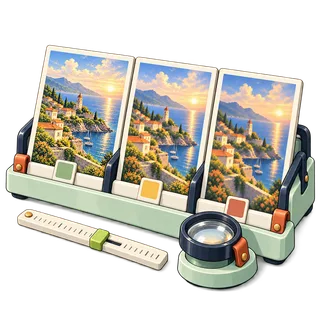
Format comparison lab
03 / Your result is ready.
Export createdHow to compare JPEG, PNG and WebP exports
- Choose a local image or one of four original practice sources. Set a width limit, quality and matte color.
- Inspect scaled live previews, then Compare formats to generate actual JPEG, PNG and WebP files at the same dimensions.
- Check bytes, fine details and alpha handling. Inspect each result, compare Original, and download the file you need or the complete ZIP.
Know before you export
All three exports start from the same decoded canvas and use the same dimensions. JPEG cannot preserve transparency. PNG ignores lossy quality. A quality number is not comparable across encoders, and browser results can differ. The lab reports actual output bytes and errors, not a perceptual score or a claim that the smallest image is best.
Supported files
Still JPEG, PNG, WebP and AVIF up to 20 MiB and 64 megapixels, plus HEIC where your browser can open it (Safari on Mac, iPhone and iPad). Photos above 24 megapixels are edited at 24 megapixels, and color effects run at up to 12 megapixels. Multi-image tools allow 12 files and 60 MiB of combined input. GIF, SVG, animated images and RAW formats are not supported.
Quick ways in
Drop an image anywhere on this page or paste one from your clipboard.
Keyboard shortcuts
- Ctrl/⌘ O Choose an image
- Ctrl/⌘ Enter Process
- Ctrl/⌘ S Download the result
- Ctrl/⌘ Z Undo settings · add Shift to redo
- Esc Cancel processing
Your files stay local
Selected image bytes are processed in browser memory. No account, upload endpoint or remote processing service is used.
Keep creating.
Explore all 39 tools
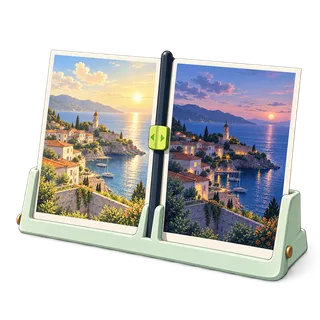

A practical Format comparison lab workflow.
Choose a delivery format by comparing actual encodings of the same decoded picture.
Try this example
Try the transparent product sample at quality 80 and a width limit of 800. Compare all three formats. JPEG gains a white matte; PNG and WebP keep clear areas when transparency is on.
Check before downloading
Confirm equal dimensions, inspect the product edge on a contrasting background and compare actual bytes. Use the small-text sample to check where lossy detail matters. PNG can be much larger without restoring details already absent from the source.
If the result is unexpected
If a browser cannot encode WebP, the lab reports that format as failed while retaining other results. For an encoding-only comparison keep the width fixed; changing width also changes the amount of image detail.
Format comparison lab is free to use in your browser. No account or image upload is required.
Format comparison lab: common questions
Are the three exports compared at the same dimensions?
Yes. All three use one decoded canvas at the chosen width, preserving aspect ratio and avoiding enlargement. The lab measures actual exported bytes. JPEG uses your matte color; PNG and WebP can preserve alpha, so review those differences alongside size.
Does the smallest export always look best?
No. JPEG and WebP change detail through lossy encoding, while PNG stores the decoded canvas pixels losslessly. Matching quality numbers do not imply matching visual quality across formats. Inspect small text, gradients, edges and transparency at full size.