pixel
Compare image formats using the same pixels
Reviewed · PixelDesk practical documentation
The smallest file is useful only if it still works for your destination. Compare formats at the same pixel dimensions, inspect the content that matters and check how transparency changes the result. PixelDesk’s lab creates real downloads rather than predicting savings.
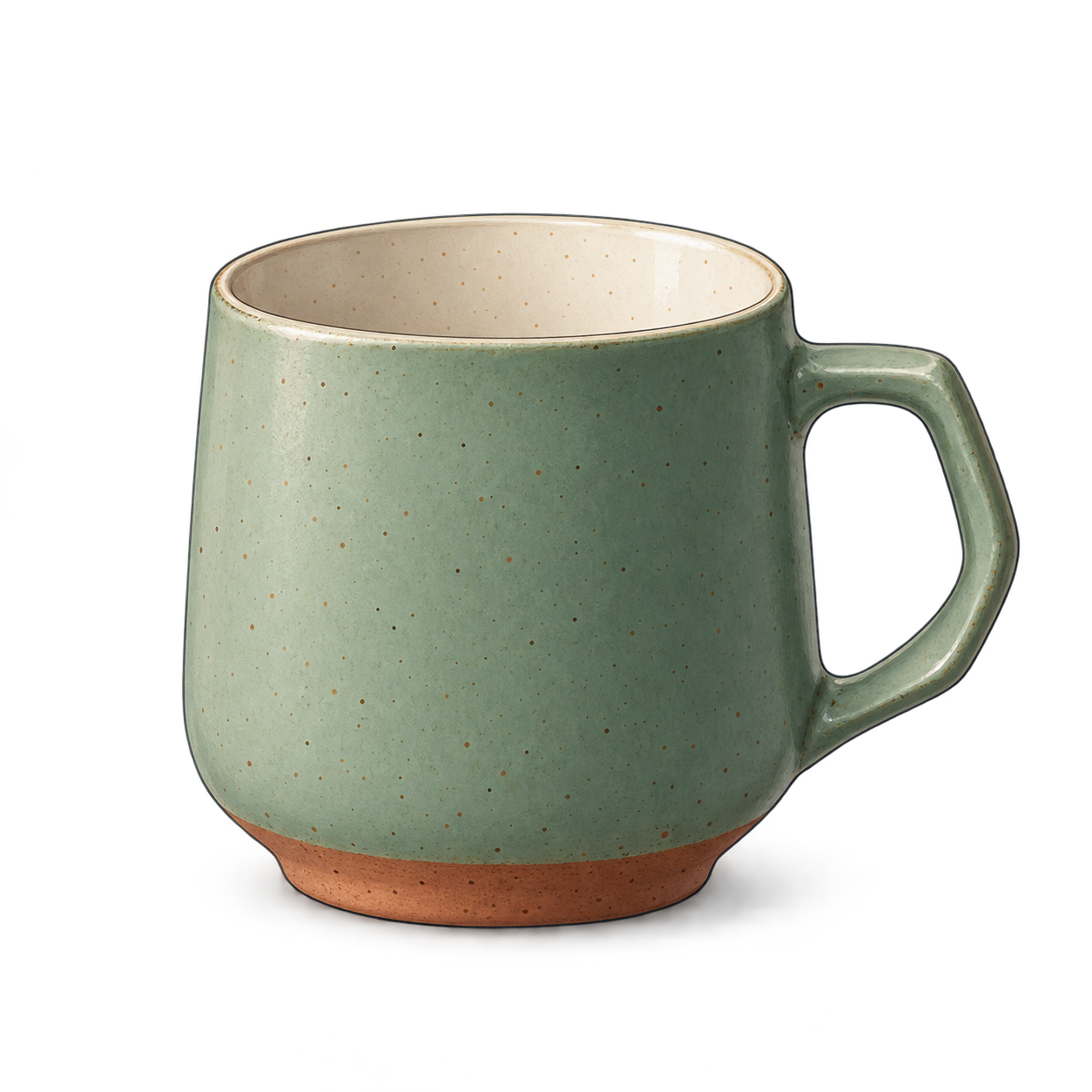
Open the transparent product practice image. Set maximum width to 640, quality to 80, preserve transparency on and matte to white. Compare formats creates JPEG, PNG and WebP from the same 640-pixel-wide working canvas.
Control dimensions before comparing bytes
A smaller width often changes file size more than switching formats. In this exercise the 1,254 × 1,254 mug source becomes 640 × 640 in every output. A maximum width of 0 keeps the working dimensions; the lab does not enlarge a source that is already smaller than the requested width. Large inputs can be reduced to the documented browser working limits before this step.
The saved results of this exercise
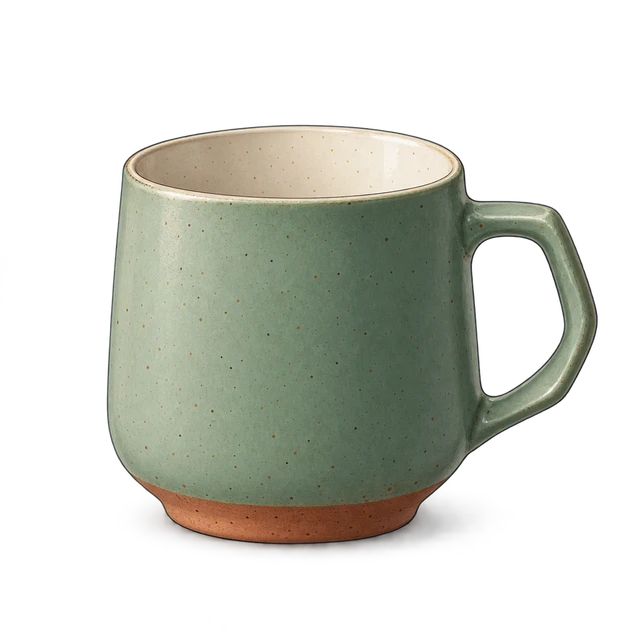
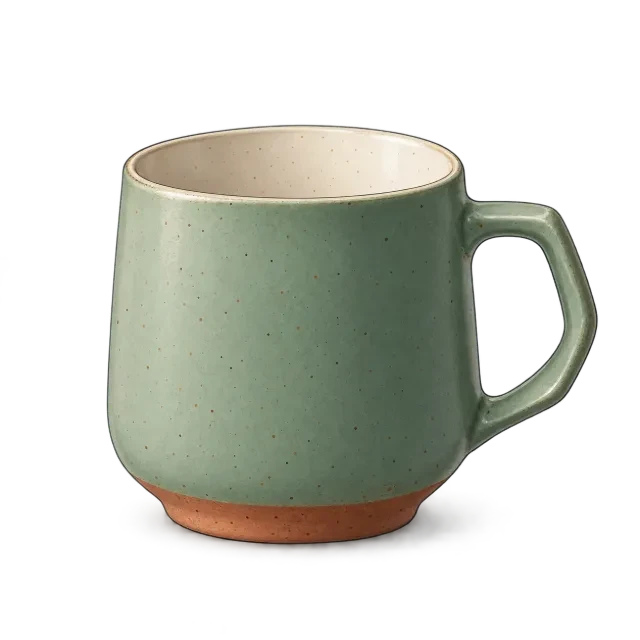
| Download | Pixels | Actual bytes | Background |
|---|---|---|---|
| JPG ↓ | 640 × 640 | 26,408 | White matte |
| PNG ↓ | 640 × 640 | 366,828 | Alpha retained |
| WEBP ↓ | 640 × 640 | 33,168 | Alpha retained |


The source is 1,254 × 1,254 px · PNG · 1.16 MiB (1,211,741 bytes). Comparing a 640-pixel export with that larger source mixes resizing and encoding. Use the table to compare the three equal-size outputs with each other. Savings are specific to this image and browser, not a promise for all photos.
JPEG changes the background as well as the encoding
JPEG has no alpha channel. The lab puts the mug onto the chosen white matte before JPEG encoding. PNG and WebP keep the clear background while Preserve transparency is on. That means the JPEG is not pixel-identical to the transparent exports, even though its dimensions match. Turn transparency off to flatten all three onto the same matte when testing an opaque destination.
Inspect the handle opening, the pale rim and the shadow against your actual page background. A white matte can be visible on a dark page. The checkerboard in PixelDesk is a transparency indicator; it is not baked into the downloaded image.
Quality 80 is not a universal quality score
The number is passed to the browser’s JPEG and WebP encoders. These encoders do not share a perceptual scale. PNG ignores this lossy-quality setting and preserves the decoded canvas pixels. A PNG export can be larger than its source because re-encoding, dimensions and source compression differ.
The live preview is scaled for responsiveness. It lets you check settings quickly but does not prove full-size quality or byte size. Generate the exports, select Inspect JPEG, PNG or WebP, and use Original / Result and Zoom. Compare fine detail at 100% in the full-size downloads.
Try four different kinds of image
- Transparent product: check semi-transparent edges, the handle opening and matte behavior.
- Detailed illustration: inspect foliage, roof tiles and small tram windows. Lossy artifacts often show up around busy edges.
- Small text card: read the smallest footer and reference number. A file that meets a byte limit but makes text unreadable is not a good export.
- Flat two-color mark: examine the frame opening and isolated dot. A simple graphic can behave very differently from a detailed scene.
What changed across our four practice images?
| Source type | Output dimensions | JPEG | PNG | WebP |
|---|---|---|---|---|
| Transparent product | 640 × 640 | 26,408 | 366,828 | 33,168 |
| Detailed coastal illustration | 640 × 427 | 95,423 | 747,678 | 88,760 |
| Small text card | 640 × 400 | 23,875 | 57,629 | 12,418 |
| Flat two-color mark | 640 × 480 | 6,283 | 11,583 | 3,732 |
These tests use maximum width 640 and quality 80 throughout. Dimensions are held constant within each row, not across the different source shapes. The JPEG is smallest for the mug, but loses the transparent background. WebP is smaller than JPEG for the three other examples. PNG is largest in all four rows here; that does not make it a worse master or prove the same ordering for other files.
The text card still needs a readability check. The coastal scene needs a fine-detail check. Byte counts alone cannot tell you whether either export is good enough. A comparison between JPEG and alpha-preserving outputs also includes the matte difference described above.


Choose for the destination, then keep the master
Use a format accepted by the site, app or upload form. Choose PNG when decoded pixel fidelity and alpha matter more than download size. Consider JPEG for an opaque image where broad compatibility matters, and WebP when the destination accepts it and the visual result is suitable. Keep a higher-quality master and avoid repeated lossy exports.
Download the individual files or all three in a ZIP. The local JSON report records bytes, dimensions, matte and settings; it is not a numerical similarity assessment. If an encoder fails, the lab reports that format’s error and keeps the other successful outputs. Read the format reference or use the workflow builder once you have chosen your export settings.
Original practice material and browser tests by Operance Labs, 20 October 2026. These are fictional product illustrations, not customer results. Downloaded outputs are complete browser-generated files. Display previews are scaled. Your browser may produce different bytes; compare full-size detail as well as size.
Put this into practice
- Format comparison lab: open the image workspace
- Convert: A fresh format. A familiar image.
- Compress: Smaller files. Same big ideas.
- Compare images: See the difference, side by side.
Continue reading
Prepared by Operance Labs · Report a documentation issue