 pixel
pixelCreate a contact sheet
Arrange up to 12 local images into a single sheet. Choose the grid, spacing, cell size, crop behavior and optional filename labels.
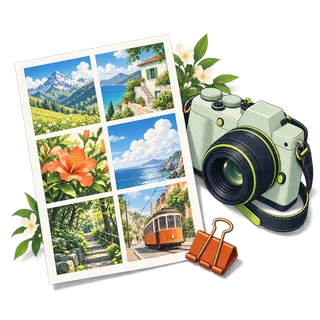
Contact sheet
03 / Your result is ready.
Export createdHow to make a contact sheet
- Select up to 12 still JPEG, PNG or WebP images. Their selection order becomes the sheet order.
- Choose columns, cell dimensions and spacing. Use Fit to keep each whole image or Center crop to fill each cell.
- Optionally add filenames, then create and download one combined image.
Know before you export
Images are arranged in the order supplied by the file picker; confirm the displayed list before exporting. Long filenames are shortened to fit. Each file is limited to 20 MiB and 24 megapixels. The output must also remain below 24 megapixels. Images are decoded one at a time during sheet creation to reduce memory pressure.
Supported files
Still JPEG, PNG, WebP and AVIF up to 20 MiB and 64 megapixels, plus HEIC where your browser can open it (Safari on Mac, iPhone and iPad). Photos above 24 megapixels or 8,192 pixels per side are processed at that size. GIF, SVG and animated images are not supported. Available export formats depend on your browser.
Quick ways in
Drop an image anywhere on this page or paste one from your clipboard.
Keyboard shortcuts
- Ctrl/⌘ O Choose an image
- Ctrl/⌘ Enter Process
- Ctrl/⌘ S Download the result
- Ctrl/⌘ Z Undo settings · add Shift to redo
- Esc Cancel processing
Your images stay local
The tools read your files in browser memory and create a local download. They do not send image contents to a server.
Keep creating.

Contact sheet is free to use in your browser. No account or image upload is required.
Contact sheet: common questions
How many pictures can I put in a contact sheet?
Select up to 12 still JPEG, PNG or WebP images. Choose one to four columns and confirm the filename order. The resulting sheet must fit within the 24-megapixel output limit.
How is a contact sheet different from merging images?
The contact sheet uses a regular grid and can include filename labels. The merge tool also offers horizontal strips and vertical stacks. Both create a single raster image, while Images to PDF creates separate pages.