 pixel
Resize images
Set exact pixel dimensions, keep proportions, or choose a centered crop. Preview the finished image and export it in JPEG, PNG or WebP.
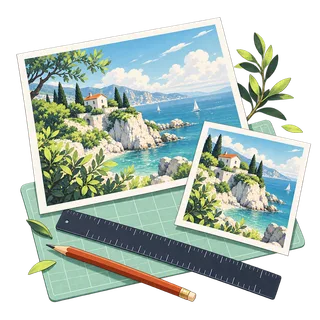
Resize
03 / Your result is ready.
Export createdFit a complete product into a square
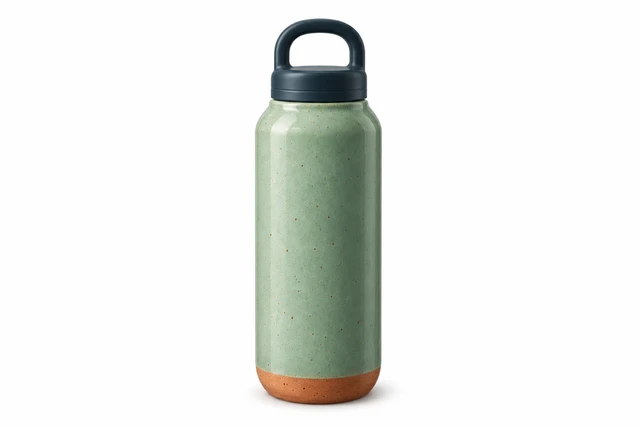
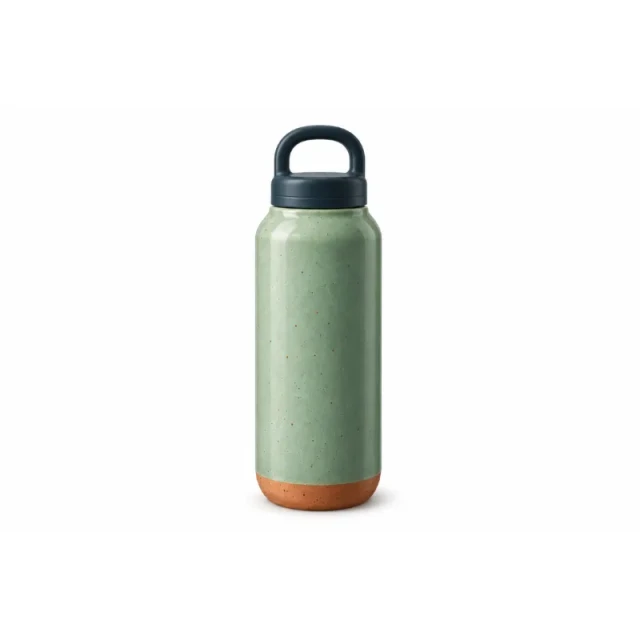
This original bottle illustration is a practice image, not a customer photograph. It makes padding and proportion changes easy to see.
Reproduce the settings
- Lock aspect ratio
- Off
- Width / height
- 800 / 800 px
- Image placement
- Fit — keep the whole image
- Export format
- PNG
- Transparency
- Off; white background
What changed
The 3:2 source fits inside an 800 × 800 canvas. Extra white space appears above and below, and the entire bottle remains visible.
What to inspect
Compare the bottle’s height, width and handle. Fit preserves its proportions. Center crop would fill the square by removing content; a positioned crop belongs in the Crop tool.
Follow the complete workflow ↗Tested 20 October 2026 in a Chromium browser. Sizes come from the saved exports. Previews are scaled; open the original files above for a full-size comparison. Other browser encoders can produce different results.
How to resize an image
- Choose an image. The original pixel dimensions appear in the settings.
- Enter your width and height. Keep the aspect ratio locked, or unlock it and choose Fit or Center crop.
- Choose your output format and background, process, then download the image.
Know before you export
Fit keeps the whole image and adds padding when the image shape differs from the output. Center crop fills the output and removes content at the edges. Enlarging adds pixels but cannot recover missing detail. Each side is limited to 8,192 pixels and the total to 24 megapixels.
Supported files
Still JPEG, PNG, WebP and AVIF up to 20 MiB and 64 megapixels, plus HEIC where your browser can open it (Safari on Mac, iPhone and iPad). Photos above 24 megapixels or 8,192 pixels per side are processed at that size. GIF, SVG and animated images are not supported. Available export formats depend on your browser.
Quick ways in
Drop an image anywhere on this page or paste one from your clipboard.
Keyboard shortcuts
- Ctrl/⌘ O Choose an image
- Ctrl/⌘ Enter Process
- Ctrl/⌘ S Download the result
- Ctrl/⌘ Z Undo settings · add Shift to redo
- Esc Cancel processing
Your images stay local
The tools read your files in browser memory and create a local download. They do not send image contents to a server.
Keep creating.
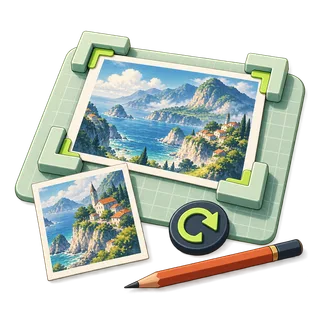


A practical Resize workflow.
Make an image fit a known pixel box without stretching its subject.
Try this example
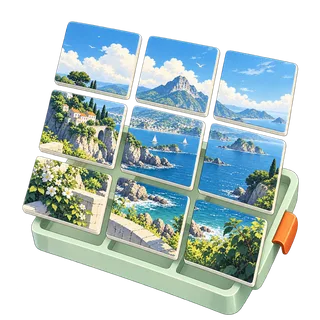
Open the coastal sample, unlock proportions and enter 800 × 800. Fit keeps the full scene with padding; Center crop fills the square and removes the left and right edges. Choose a background color for a JPEG.
Check before downloading
Check the subject and all four edges, then confirm the exported dimensions. Preview scaling does not show the final file size; processing creates the full output.
If the result is unexpected
If the picture looks soft, check whether you enlarged a small source. Extra interpolated pixels do not reconstruct missing detail. Use the crop tool first when the centered composition cuts off your subject.
Resize is free to use in your browser. No account or image upload is required.
Resize: common questions
How do I resize an image without stretching it?
Keep the aspect ratio locked to preserve proportions. For a different output shape, unlock it and choose Fit for padding or Center crop to fill the box. Neither option stretches the subject.
Does enlarging an image improve its detail?
Enlargement interpolates additional pixels. It cannot recover detail missing from the original. Keep a source copy and inspect your full-size result before using it.