 pixel
pixelCrop an image precisely
Draw a crop on the preview, choose an aspect-ratio preset, or enter an exact crop rectangle in pixels. Preview the exported area before saving.
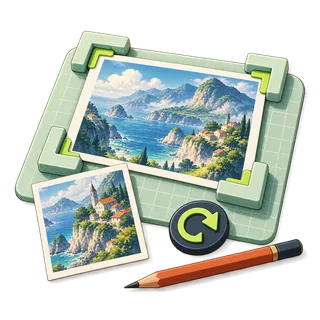
Crop
03 / Your result is ready.
Export createdHow to crop an image precisely
- Choose an image and draw a crop on Original, or select an aspect-ratio preset.
- Adjust left, top, width and height within the source boundaries. Switch to Live preview to inspect the selected region.
- Choose an export format, process and download the cropped copy.
Know before you export
Crop coordinates must stay inside the source image. Drawing a rectangle switches to Free selection. Ratio presets create a centered rectangle; the numeric controls remain available for precise positioning.
Supported files
Still JPEG, PNG, WebP and AVIF up to 20 MiB and 64 megapixels, plus HEIC where your browser can open it (Safari on Mac, iPhone and iPad). Photos above 24 megapixels are edited at 24 megapixels, and color effects run at up to 12 megapixels. Multi-image tools allow 12 files and 60 MiB of combined input. GIF, SVG, animated images and RAW formats are not supported.
Quick ways in
Drop an image anywhere on this page or paste one from your clipboard.
Keyboard shortcuts
- Ctrl/⌘ O Choose an image
- Ctrl/⌘ Enter Process
- Ctrl/⌘ S Download the result
- Ctrl/⌘ Z Undo settings · add Shift to redo
- Esc Cancel processing
Your files stay local
Selected image bytes are processed in browser memory. No account, upload endpoint or remote processing service is used.
Keep creating.
Explore all 26 tools


Crop is free to use in your browser. No account or image upload is required.
Crop: common questions
How do I crop an image to a square or 16:9?
Choose Square 1:1 or Widescreen 16:9 in Aspect ratio. The preset creates a centered crop. Adjust the pixel coordinates to reposition it, or draw on the original to switch to Free selection.
Does cropping resize the remaining picture?
The crop tool exports the selected rectangle at its source pixel dimensions. It does not stretch that region to a new size. Use Resize afterward if you need different output dimensions.