 pixel
Crop a photo into a square
A 1:1 crop suits profile pictures, Instagram posts and product photos. The cropper starts with a centered 1:1 frame on your image; drag on the preview or adjust the numbers to choose exactly what stays.
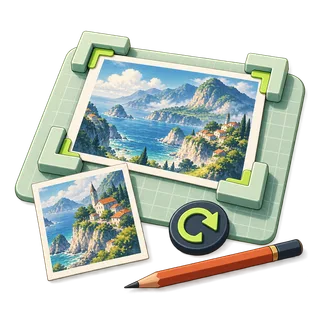
Crop
03 / Your result is ready.
Export createdHow to crop a photo into a square
- Choose an image, or try the sample.
- A centered 1:1 crop is applied automatically. Change Left and Top to move it. Drawing creates a free selection.
- Process and download the cropped copy at full resolution.
Know before you export
Crop coordinates must stay inside the source image. Drawing a rectangle switches to Free selection. Ratio presets create a centered rectangle; the numeric controls remain available for precise positioning.
Supported files
Still JPEG, PNG, WebP and AVIF up to 20 MiB and 64 megapixels, plus HEIC where your browser can open it (Safari on Mac, iPhone and iPad). Photos above 24 megapixels are edited at 24 megapixels, and color effects run at up to 12 megapixels. Multi-image tools allow 12 files and 60 MiB of combined input. GIF, SVG, animated images and RAW formats are not supported.
Quick ways in
Drop an image anywhere on this page or paste one from your clipboard.
Keyboard shortcuts
- Ctrl/⌘ O Choose an image
- Ctrl/⌘ Enter Process
- Ctrl/⌘ S Download the result
- Ctrl/⌘ Z Undo settings · add Shift to redo
- Esc Cancel processing
Your files stay local
Selected image bytes are processed in browser memory. No account, upload endpoint or remote processing service is used.
Keep creating.
Explore all 39 tools
Crop to Square: check the setup
A square crop keeps part of the source, without adding borders
Use a square crop for a profile picture, product thumbnail or a consistent grid. A 1:1 ratio means the selected width and height are equal. It does not prescribe 1,080 pixels, and it does not squeeze a landscape into a square.
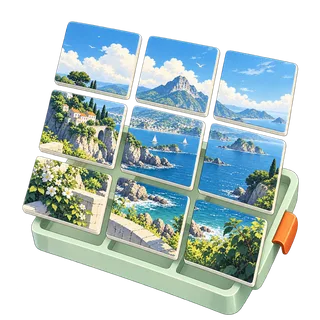
With the built-in 1,536 × 1,024 coastal sample, the centered square is 1,024 × 1,024 pixels: Left 256, Top 0, Width 1,024 and Height 1,024. That removes 256 pixels from each horizontal edge. Change Left to move the square toward the part you want to keep; drawing a new rectangle creates a free selection.
Need every edge of the picture? Use the square resizer with Fit to add padding instead. Need an exact 1,080 × 1,080 export after choosing your crop? Continue in the square post resizer. Keep the original so you can choose a different framing later.
Resize a square to 1,080 × 1,080 · Learn crop coordinates and aspect ratios
| Check | What this preset does |
|---|---|
| Crop shape | 1:1 width to height |
| Position | The initial crop is centered. Use Left and Top to move it without drawing a new free selection. |
| Pixel dimensions | The selected source area determines output pixels. For exact delivery dimensions, continue in Resize after cropping. |
This is the Crop tool with starting settings for this task. You can change the controls before processing. Reset settings restores this preset; your original file is preserved. Open all Crop controls
Crop to Square is free to use in your browser. No account or image upload is required.
Crop to Square: common questions
How do I crop a photo into a square?
Choose your photo and the cropper places a centered square automatically. Change Left and Top to reposition the square, then process and download. Drawing on Original creates a new free rectangle.
Does cropping reduce the image quality?
Cropping keeps the selected area of the working image, but JPEG and WebP exports can add encoding loss. Very large sources use the documented working-size limit. Use Resize afterward if you need a specific delivery size.