 pixel
pixelResize an image for an Instagram square post
Instagram displays square posts at 1080 × 1080 pixels. The resizer is preset to 1080 × 1080 pixels with center crop, so your picture fills the frame without stretching.
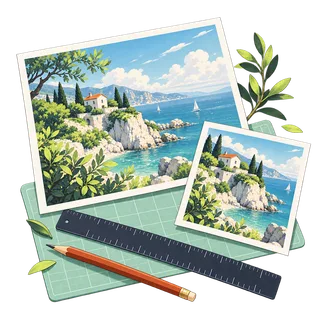
Resize
03 / Your result is ready.
Export createdHow to resize an image
- Choose a photo, or try the sample image.
- The size is already 1080 × 1080 px with center crop. Choose Fit instead to keep the whole picture with padding.
- Check the live preview, process and download your image.
Know before you export
Fit keeps the whole image and adds padding when the image shape differs from the output. Center crop fills the output and removes content at the edges. Enlarging adds pixels but cannot recover missing detail. Each side is limited to 8,192 pixels and the total to 24 megapixels.
Supported files
Still JPEG, PNG, WebP and AVIF up to 20 MiB and 64 megapixels, plus HEIC where your browser can open it (Safari on Mac, iPhone and iPad). Photos above 24 megapixels or 8,192 pixels per side are processed at that size. GIF, SVG and animated images are not supported. Available export formats depend on your browser.
Quick ways in
Drop an image anywhere on this page or paste one from your clipboard.
Keyboard shortcuts
- Ctrl/⌘ O Choose an image
- Ctrl/⌘ Enter Process
- Ctrl/⌘ S Download the result
- Ctrl/⌘ Z Undo settings · add Shift to redo
- Esc Cancel processing
Your images stay local
The tools read your files in browser memory and create a local download. They do not send image contents to a server.
Keep creating.


Instagram Post Size is free to use in your browser. No account or image upload is required.
Instagram Post Size: common questions
What size is an Instagram post?
A square post is 1080 × 1080 pixels. Portrait posts are 1080 × 1350 (4:5) and show more of the feed, while landscape posts are 1080 × 566. Uploading the exact size avoids Instagram cropping or recompressing your edges.
Will my photo be stretched to fit?
No. Center crop scales the photo to fill the square and trims the edges that do not fit. Choose Fit instead to keep the whole photo and add padding in a background color you pick.