 pixel
Straighten an image by any small angle
Rotate from −45° to +45° in 0.1° steps with a live preview. The canvas expands to preserve the whole image; choose transparent corners or a solid background.
Straighten
03 / Your result is ready.
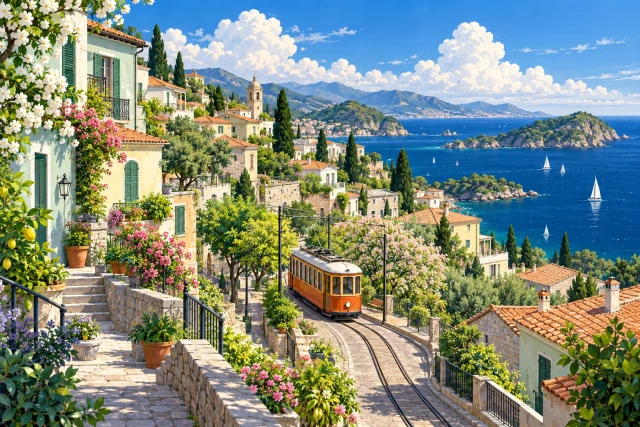
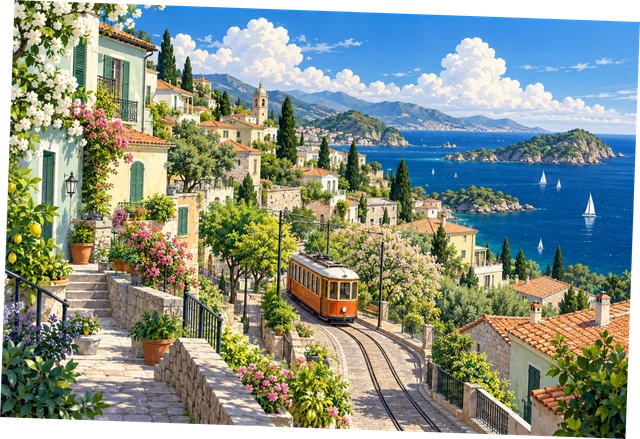
Export createdRotate a coastal image by exactly +2°
This deliberate tilt demonstrates the expanded canvas; it is not an automatic correction of the sample’s horizon.
Reproduce the settings
- Clockwise angle
- +2.0°
- Export format
- PNG
- Preserve transparency
- On
What changed
A 1,536 × 1,024 source becomes 1,571 × 1,077. Transparent corners preserve the whole rotated picture. The much larger PNG is an editing copy, not a compression improvement.
What to inspect
Open the full-size result to inspect the corners and fine tram details. Use Crop afterward if you need a rectangular photograph with no clear corners.
Follow the complete workflow ↗Tested 20 October 2026 in a Chromium browser. Sizes come from the saved exports. Previews are scaled; open the original files above for a full-size comparison. Other browser encoders can produce different results.
How to straighten an image by any small angle
- Open an image and find a line that should be level.
- Adjust the angle while watching the live preview. Choose PNG or WebP for clear corners, or select a background.
- Process and inspect the expanded canvas. Use Crop afterward if you need a rectangle without corner space.
Know before you export
The canvas expands instead of cutting off corners. An expanded image must stay within 8,192 pixels per side and 24 megapixels. Rotation interpolates pixels and can soften tiny text. This tool does not detect a horizon, fix perspective or invent missing corners.
Supported files
Still JPEG, PNG, WebP and AVIF up to 20 MiB and 64 megapixels, plus HEIC where your browser can open it (Safari on Mac, iPhone and iPad). Photos above 24 megapixels are edited at 24 megapixels, and color effects run at up to 12 megapixels. Multi-image tools allow 12 files and 60 MiB of combined input. GIF, SVG, animated images and RAW formats are not supported.
Quick ways in
Drop an image anywhere on this page or paste one from your clipboard.
Keyboard shortcuts
- Ctrl/⌘ O Choose an image
- Ctrl/⌘ Enter Process
- Ctrl/⌘ S Download the result
- Ctrl/⌘ Z Undo settings · add Shift to redo
- Esc Cancel processing
Your files stay local
Selected image bytes are processed in browser memory. No account, upload endpoint or remote processing service is used.
Keep creating.
Explore all 39 tools


A practical Straighten workflow.
Level a slightly tilted photo without silently cutting off its corners.
Try this example
Try the coastal sample at +2 degrees, then −2 degrees. Notice the expanded canvas and how much corner space is introduced. Export PNG to preserve that space as transparency.
Check before downloading
Check the horizon and output dimensions. The positive angle rotates clockwise. A larger canvas does not mean the picture gained detail.
If the result is unexpected
If the expanded canvas exceeds the output limit, resize first. Use Crop afterward to remove corner space; use Rotate & flip for quarter turns. Straightening cannot correct converging perspective lines.
Straighten is free to use in your browser. No account or image upload is required.
Straighten: common questions
Will straightening cut off my image corners?
No. PixelDesk expands the canvas to keep the rotated image. Corners are transparent in PNG or WebP when transparency is enabled, or filled with the chosen background. Crop afterward to remove empty corner space.
Is the horizon detected automatically?
No. Use the live preview to set an angle from −45 to +45 degrees. Positive values rotate clockwise. For exact 90-degree steps or mirroring, use Rotate & flip.