 pixel
pixelConvert an image to SVG
Trace a logo, icon or illustration into a scalable SVG with 2 to 12 flat colors. Adjust edge detail, smoothing and speck removal with a live preview, then download or copy the SVG.
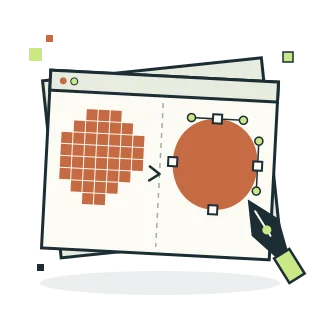
Image to SVG
03 / Your result is ready.
Export createdHow to convert an image to SVG
- Choose a logo, icon or illustration, or try the sample.
- Pick the number of colors, then adjust edge simplification, smoothing and speck removal while watching the traced preview.
- Trace to SVG, then download the file or copy its code.
Know before you export
Tracing works best on logos, icons, flat illustrations and scanned drawings. Photographs become posterized flat-color shapes. Colors are reduced to the chosen palette and transparent pixels stay transparent. Higher resolutions trace more detail but take longer and create larger files.
Supported files
Still JPEG, PNG, WebP and AVIF up to 20 MiB and 64 megapixels, plus HEIC where your browser can open it (Safari on Mac, iPhone and iPad). Photos above 24 megapixels are edited at 24 megapixels, and color effects run at up to 12 megapixels. Multi-image tools allow 12 files and 60 MiB of combined input. GIF, SVG, animated images and RAW formats are not supported.
Quick ways in
Drop an image anywhere on this page or paste one from your clipboard.
Keyboard shortcuts
- Ctrl/⌘ O Choose an image
- Ctrl/⌘ Enter Process
- Ctrl/⌘ S Download the result
- Ctrl/⌘ Z Undo settings · add Shift to redo
- Esc Cancel processing
Your files stay local
Selected image bytes are processed in browser memory. No account, upload endpoint or remote processing service is used.
Keep creating.
Explore all 26 tools
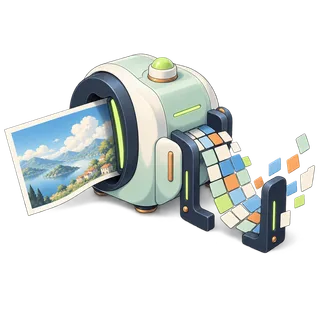
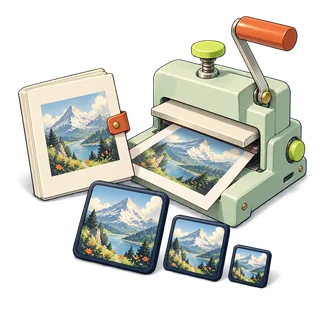
A practical Image to SVG workflow.
Trace a flat graphic into editable SVG paths rather than embedding a raster picture.
Try this example
Start with a simple logo, six colors and Balanced tracing resolution at 512 pixels. Compare Simplify edges at 0 and 1, then inspect whether small intentional marks survive speck removal.
Check before downloading
Color reduction and tracing change the artwork. Photographs become flat posterized regions, and smaller tracing resolutions can lose details before paths are created.
If the result is unexpected
If counters in letters or small shapes disappear, lower speck removal and simplification or increase tracing resolution. Inspect the SVG in its destination before replacing a source logo.
Image to SVG is free to use in your browser. No account or image upload is required.
Image to SVG: common questions
Which images trace well?
Logos, icons, flat illustrations, simple graphics and scanned line drawings trace cleanly. Photographs become posterized flat-color shapes, which can be a deliberate style but will not look photographic.
Is the SVG made of real vector paths?
Yes. Each color becomes one SVG path of lines or smooth curves, so it scales to any size without pixelation. Fewer colors and more edge simplification give smaller, cleaner files.