 pixel
pixelCombine images vertically
Stacking images vertically is useful for step-by-step screenshots, before-and-after comparisons and long social posts. The merge tool is preset to a vertical stack.

Merge images
03 / Your result is ready.
Export createdHow to combine images vertically
- Choose two to twelve images and put them in order with the arrows.
- The vertical stack is already selected. Set the cell size and spacing.
- Process and download the combined image.
Know before you export
Still JPEG, PNG, WebP and AVIF inputs up to 64 megapixels are supported, and HEIC where the browser can decode it. Photos above 24 megapixels or 8,192 pixels per side are edited at that size. Color, filter and color-removal effects run at up to 12 megapixels; larger photos are scaled for the effect. All processing stays in your browser.
Supported files
Still JPEG, PNG, WebP and AVIF up to 20 MiB and 64 megapixels, plus HEIC where your browser can open it (Safari on Mac, iPhone and iPad). Photos above 24 megapixels are edited at 24 megapixels, and color effects run at up to 12 megapixels. Multi-image tools allow 12 files and 60 MiB of combined input. GIF, SVG, animated images and RAW formats are not supported.
Quick ways in
Drop an image anywhere on this page or paste one from your clipboard.
Keyboard shortcuts
- Ctrl/⌘ O Choose an image
- Ctrl/⌘ Enter Process
- Ctrl/⌘ S Download the result
- Ctrl/⌘ Z Undo settings · add Shift to redo
- Esc Cancel processing
Your files stay local
Selected image bytes are processed in browser memory. No account, upload endpoint or remote processing service is used.
Keep creating.
Explore all 26 tools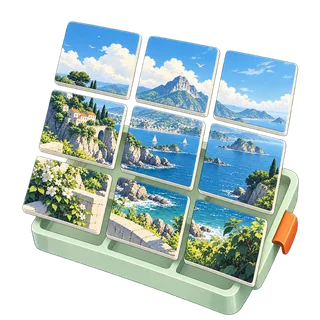

Stack Images Vertically is free to use in your browser. No account or image upload is required.
Stack Images Vertically: common questions
How do I change the order of the stacked images?
Use the up and down arrows beside each filename. The list order, top to bottom, becomes the stack order.
Can images of different sizes be combined?
Yes. Each image is fitted into the same cell size, so the stack lines up neatly. Choose Center crop to fill each cell or Fit to keep whole images.