 pixel
Turn an image into pixel art
Build a pixel grid from your image, choose a retro, handheld or grayscale palette, and adjust ordered dithering. Export the small grid or crisp nearest-neighbor artwork.
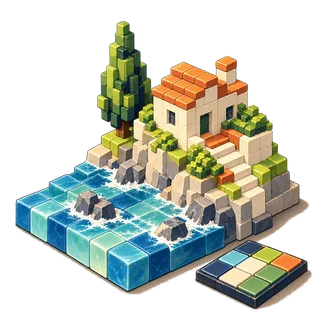
Pixel art studio
03 / Your result is ready.
Export createdHow to turn an image into pixel art
- Open a photo or graphic and choose a grid width such as 64 or 96.
- Pick a palette and compare dithering at 0 and 50. Select small-grid or original-size output.
- Export PNG. Check the pixel grid dimensions in the result note and avoid smooth scaling later.
Know before you export
This is a sampled image effect, not a hand-drawn sprite generator. Grid width is capped at the source width. Fixed palettes change RGB while retaining alpha; semitransparent edges may look different on another background. PNG keeps block edges without lossy artifacts.
Supported files
Still JPEG, PNG, WebP and AVIF up to 20 MiB and 64 megapixels, plus HEIC where your browser can open it (Safari on Mac, iPhone and iPad). Photos above 24 megapixels are edited at 24 megapixels, and color effects run at up to 12 megapixels. Multi-image tools allow 12 files and 60 MiB of combined input. GIF, SVG, animated images and RAW formats are not supported.
Quick ways in
Drop an image anywhere on this page or paste one from your clipboard.
Keyboard shortcuts
- Ctrl/⌘ O Choose an image
- Ctrl/⌘ Enter Process
- Ctrl/⌘ S Download the result
- Ctrl/⌘ Z Undo settings · add Shift to redo
- Esc Cancel processing
Your files stay local
Selected image bytes are processed in browser memory. No account, upload endpoint or remote processing service is used.
Keep creating.
Explore all 39 tools
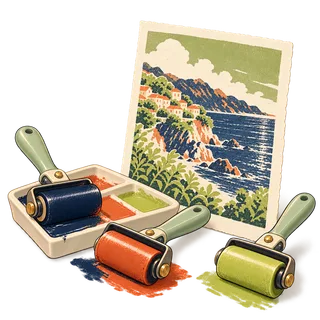
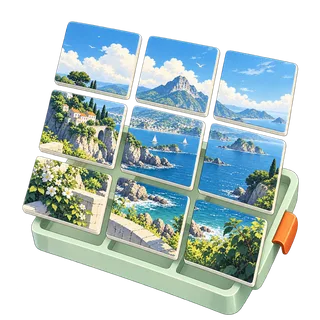
A practical Pixel art studio workflow.
Make a palette-limited graphic or a starting point for a sprite experiment.
Try this example
Try the coastal source at 64 columns, Handheld green and dithering 0. Compare dithering 50, then select the small-grid output. A 3:2 source rounds to 64 × 43.
Check before downloading
Use PNG to retain palette values. Check silhouettes at the grid resolution; a larger nearest-neighbor copy only enlarges existing blocks.
If the result is unexpected
If a subject disappears, crop closer or widen the grid. Dithering suggests intermediate tones but can add visual noise. Alpha remains separate from the RGB palette.
Pixel art studio is free to use in your browser. No account or image upload is required.
Pixel art studio: common questions
Can I download the actual small pixel grid?
Yes. Select Export the small pixel grid to save at the chosen grid width and proportional height. Keep working image dimensions instead enlarges that grid with nearest-neighbor edges, without smoothing the blocks.
How many colors does the pixel palette contain?
Studio retro uses eight RGB colors; Handheld green and Ink grayscale use four each. Dithering chooses patterns within that palette. Alpha values remain separate, so semitransparent pixels can blend with a destination background.